
The Upgrade and Update menus in your virtual classroom account allow you to purchase a subscription and update it, respectively.
How to Upgrade to the Premium Virtual Classroom subscription
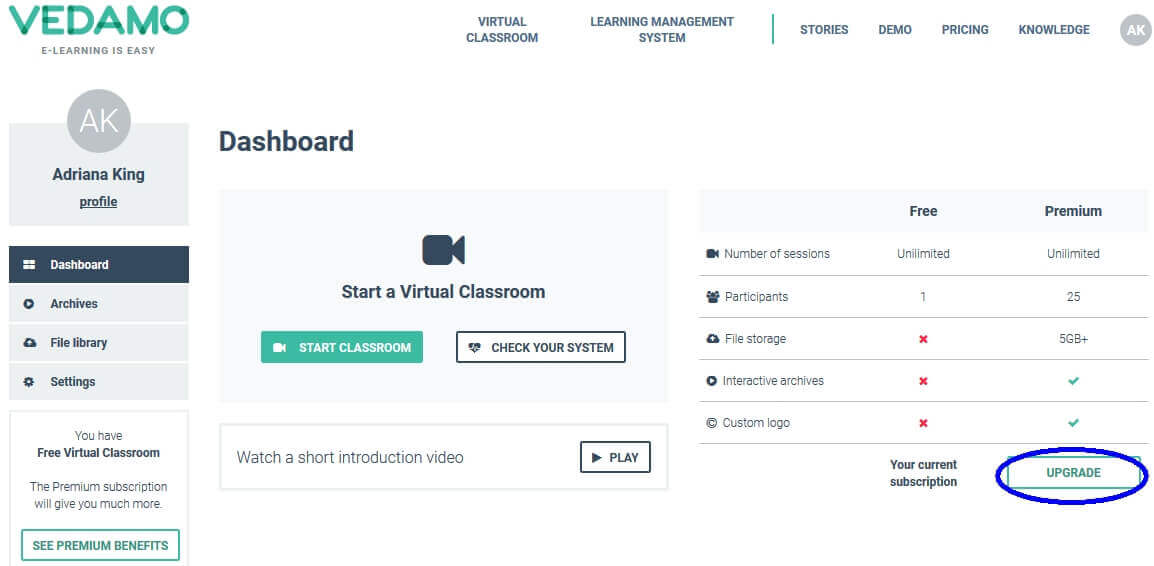
In order to upgrade your Free Virtual Classroom to Premium, log in to your account and click on Upgrade in the right corner of the screen.
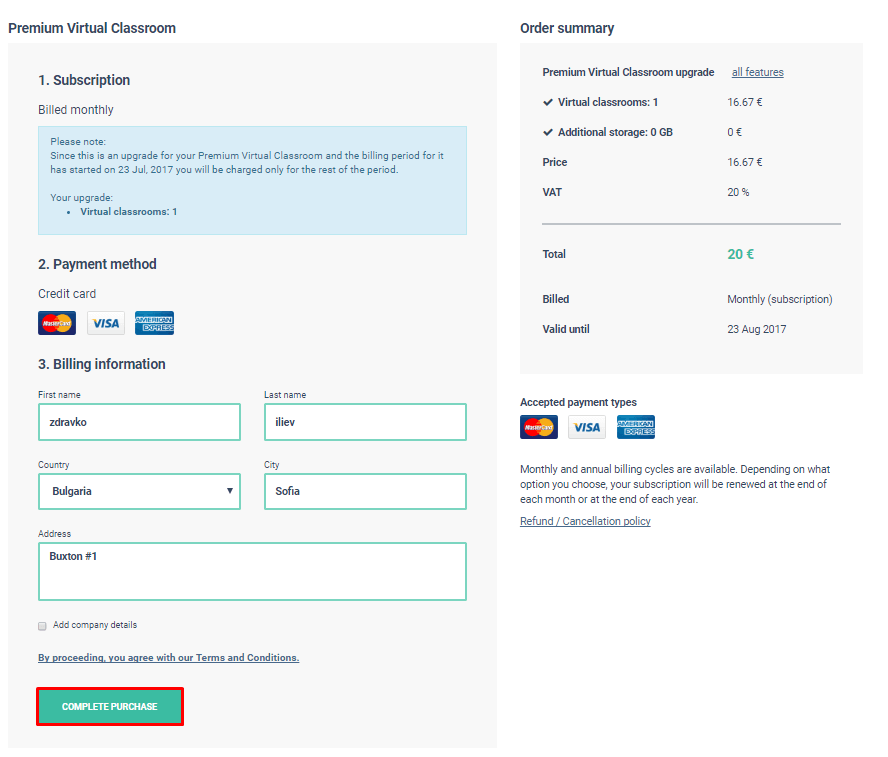
Once you click on Upgrade you will redirected to the following page, where you will be prompted to enter your billing information. Additionally, you will be able to see details about your purchase and the current subscription plan. To proceed further click on Complete Purchase.
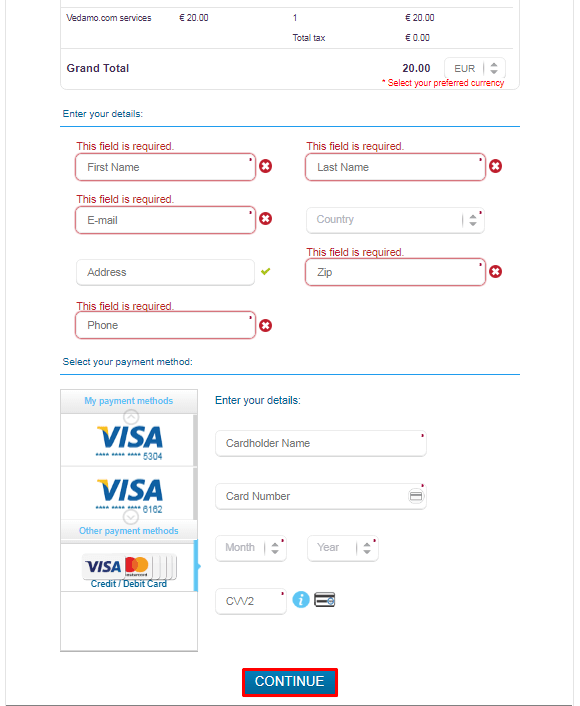
Once clicked, a new window will open. You have to enter your billing information there. Enter your details:
- First and Last name
- Email address;
- Country of Residence;
- Address;
- Zip Code;
- Phone number.
Then enter your payment method details:
- Cardholder name;
- Card number;
- Month and Year of expiry;
- CCV2.
Click Complete Purchase to complete the purchase.
You will get to the next step, where you will need to add your details and select your preferred payment method (Credit and Debit cards, such as Visa, Mastercard, etc.). Once done click on Continue to confirm and finish your purchase.
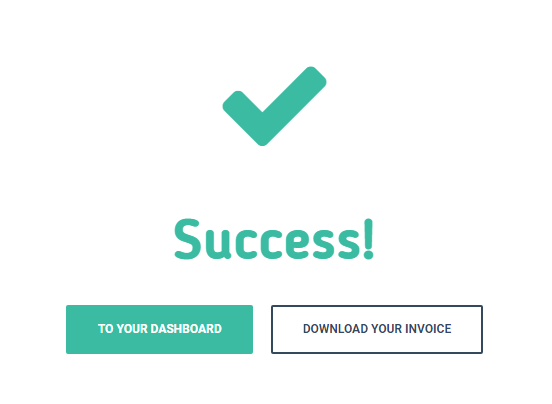
After the payment goes through you will see a window which will allow you to go straight to your Dashboard or download the invoice for the purchase.
Additionally you will receive an email from no-reply@vedamo.com containing the purchase information, date of payment and the date your next payment will take place.
How to Update your Premium Virtual Classroom subscription
To update your Premium Virtual Classroom click on Billing and Upgrade.
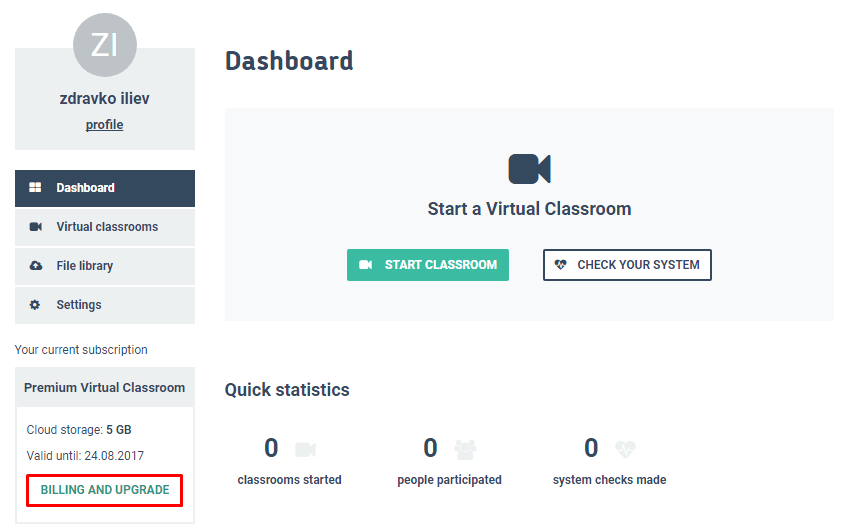
A new window will open which contains Subscription and Billing details.
You will see information regarding your preferred payment method, the option to update the storage used for the virtual archives, templates and files. You can also cancel your subscription through this menu.
Drag the slider to adjust the amount of extra storage you are going to need.
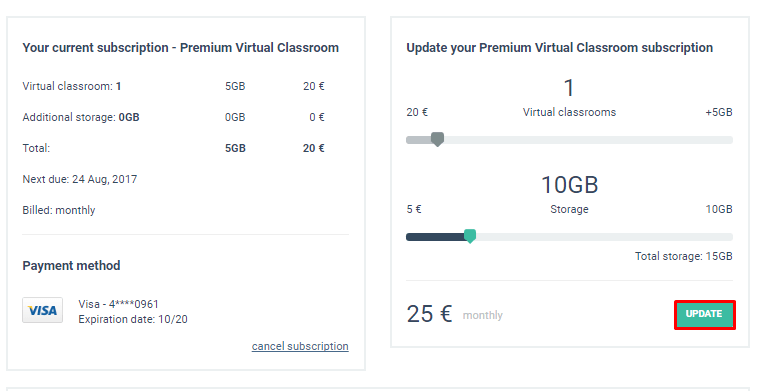
Once done click on Update. That will open a new window which will require you to add your details and select your payment method. Put in the necessary information and click on Continue to confirm and finish your purchase.
After the payment goes through you will see the below window which will allow you to go straight to your Dashboard or download the invoice for the purchase.
Additionally you will receive an email from no-reply@vedamo.com containing the purchase information, date of payment and the date your next payment will take place.
How to Cancel your Premium Virtual Classroom subscription
To cancel your subscription click on Cancel Subscription.
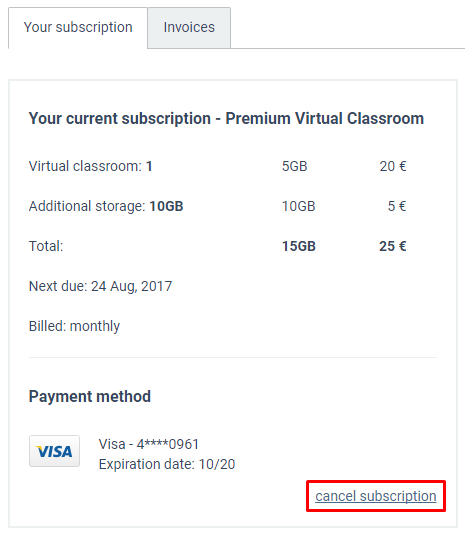
Once clicked, a new window will appear which will prompt you to confirm if you want to cancel your subscription. Canceling your subscription means that you will no longer be charged automatically once your subscription period ends. You will need to make another payment manually in order to renew your subscription.
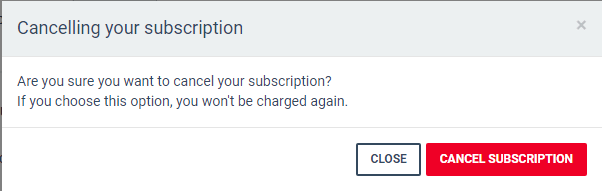
Click Close to close the window without making any changes or Cancel Subscription to cancel your subscription.

